
How to Block Someone on TikTok
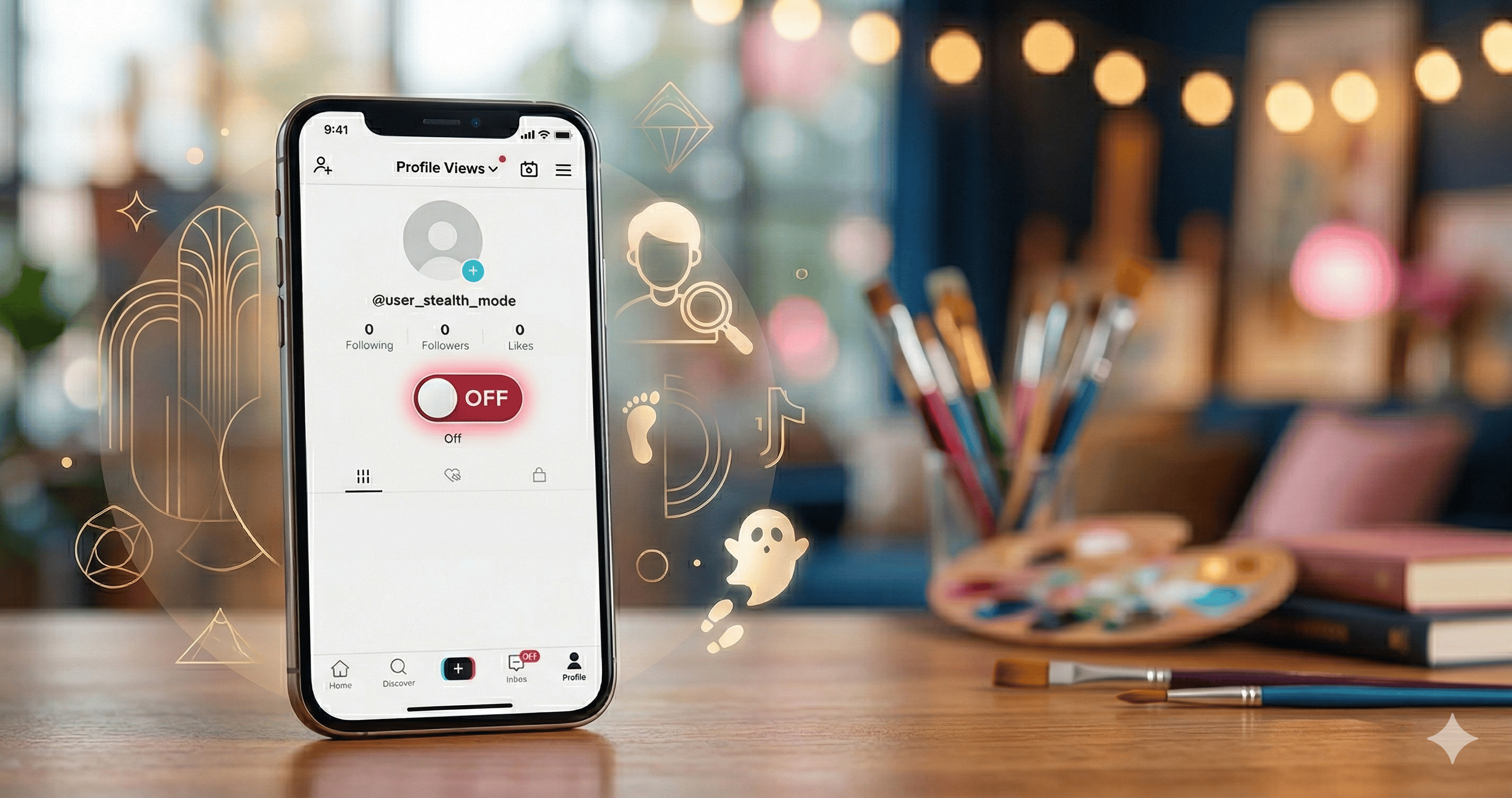
Have you ever encountered a persistent harasser, an annoying bot, or just someone whose content you'd rather never see again on your For You Page? You are not alone. With over 1 billion monthly active users, TikTok is a massive community, and unfortunately, not every interaction is a positive one.
If you are wondering how to block someone on TikTok, you've come to the right place. Blocking is the most effective tool TikTok provides to instantly cut off communication and visibility between you and another user.
In this guide, we will walk you through the exact steps to block someone, explain what actually happens when you do, and show you how to manage your blocked list using the latest app interface.
Why Should You Block Someone on TikTok?
TikTok should be a place for creativity and enjoyment. You have every right to curate your experience. You might choose to block someone for several reasons:
- Harassment or Bullying: Protecting your mental health is paramount.
- Spam and Bots: Trolling comments and fake accounts can ruin your engagement.
- Privacy Concerns: You don't want a specific person (like an ex-partner or coworker) seeing your content.
- Unwanted Content: You simply don't enjoy their videos and want them off your feed forever.
How to Block Someone on TikTok (Step-by-Step)
Blocking a user is simple and can be done in under 10 seconds. Here is the most direct method:
Method 1: Blocking Directly from Their Profile
- Find the User: Navigate to the profile of the person you want to block. You can do this by tapping their username on a video, or by searching for them.
- Open the Menu: In the top-right corner of their profile page, you will see a Share icon (an arrow) or three dots (⋯). Tap it.
- Select Block: A menu will pop up from the bottom. Tap the Block icon (a circle with a line through it).
- Confirm: A final confirmation box will appear. Tap Block again to confirm your decision.
Method 2: Blocking via Direct Messages (DMs)
If the user is messaging you, you can block them directly from the chat:
- Go to your Inbox and open the chat with the user.
- Tap the three dots (⋯) or the user's name at the top right.
- Toggle the Block option to On.
What Happens When You Block Someone on TikTok?
When you block someone, the following changes take effect *immediately*:
For the Blocked User:
- Profile Invisibility: If they search for you, your profile will appear empty or won't show up at all.
- Content Removal: Your videos disappear from their For You Page and Following feed.
- Messaging Disabled: They can no longer send you Direct Messages.
- Interaction Blocked: They cannot comment on your videos, mention you, or tag you in any content.
For You:
- Feed Cleanup: You will no longer see their videos on your feed.
- Profile Hidden: Their profile will be hidden from you unless you search for it specifically to unblock them.
Note: TikTok does not notify the user that you have blocked them. They will only realize it if they try to interact with your profile and find it inaccessible.
How to See Your Blocked List (and How to Unblock)
If you made a mistake or decided to give someone another chance, managing your blocked list is easy.
How to Find Your Blocked List:
- Go to your Profile and tap the three-line menu (≡) in the top-right corner.
- Tap Settings and Privacy.
- Select Privacy.
- Scroll to the very bottom and tap Blocked accounts. Here, you will see a list of everyone you have ever blocked.
How to Unblock Someone:
Simply find the user's name on your Blocked accounts list and tap the Unblock button next to their name.
Summary: Control Your TikTok Experience
In 2026, maintaining digital safety is more important than ever. Knowing how to block someone on TikTok is a fundamental skill for keeping your online environment positive. Don't hesitate to use this feature to protect your peace.
Ready to boost your TikTok privacy even further? Check out our guide on *How to Make Your TikTok Account Private*.